Invite your colleagues to your firm's account so you can work from the same deals, mandates, and pipeline. Teammate seats are free.
This guide walks you through inviting teammates, removing access, and switching between buyer and seller views.
Step 1: Invite a teammate
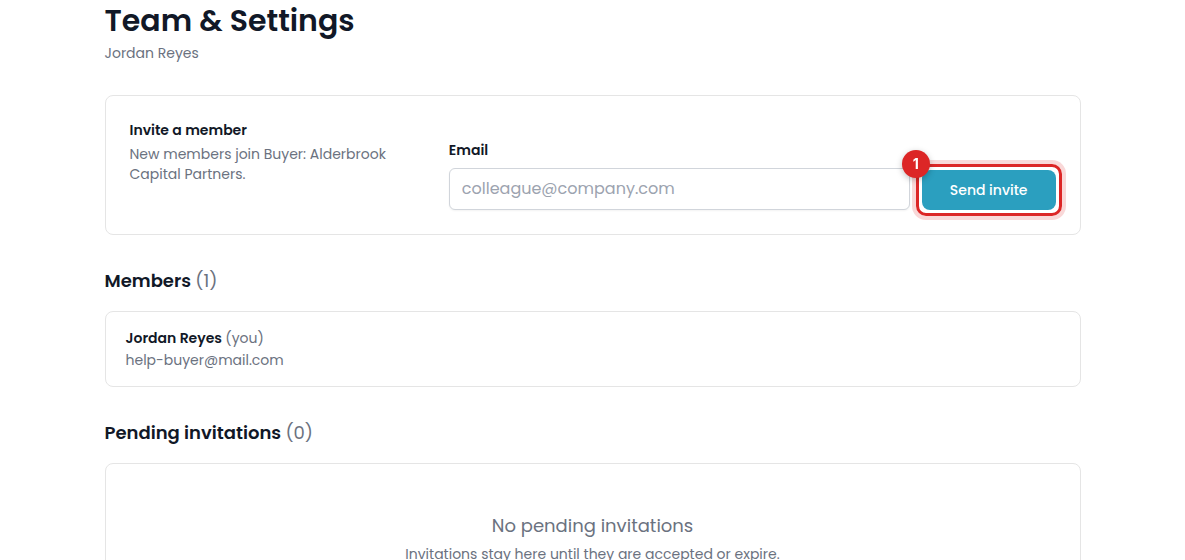
Open Team & Settings, enter your colleague's email address, and click Send invite.
Your colleague receives a link to join your firm and set their password.
Note: If your firm already has an account, invite colleagues from that account. A separate application creates a separate firm account.
Step 2: Remove a teammate
If someone leaves your firm, remove their access from Team & Settings. Contact support@privsource.com if you need help changing the account owner.
Step 3: Switch between buyer and seller views
If your firm works both sides, contact support@privsource.com to add the other side to your account.
Once both are available, use the account switcher at the bottom of the left navigation to choose the buyer or seller view.