Publish a mandate and review matched deals

Use this when

you're on the buy side and want to see the deals that fit your criteria. You can set multiple mandates if you have more than one thesis.

Your mandate tells us what you want to buy. We bring you the deals that fit, each with why it fits. Sellers with matching deals can also see your mandate and hand-pick you for their deals.

This guide walks you through publishing a mandate, reviewing matches, and updating your search.

Step 1: Start a new mandate

Open My Mandates and select New Mandate. Give it a title your team will recognize. The editor saves as you go, so you can leave and come back. Drafts are private until you publish.
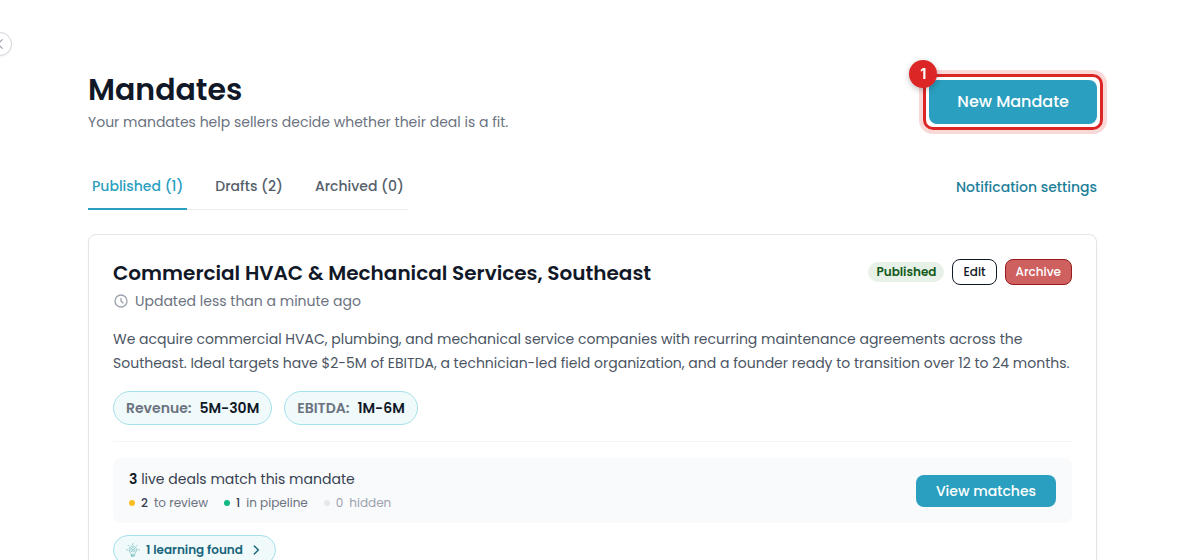
The My Mandates page with the New Mandate button marked

Step 2: Set your criteria

Your mandate is how we find deals that fit, and how sellers decide whether to hand-pick you. The more complete it is, the better your matches.

  • Deal size. Set both a revenue range and an EBITDA range if you can. Some deals report only one, so setting both means you won't miss a deal that fits.

  • Deal size flexibility. Choose Yes, No, or Case by case. If you'd consider a deal just outside your range, Case by case tells sellers you're open to the conversation.

  • Industries. Choose the industries you want to buy in. Then add any you won't consider, such as defense, cannabis, or gambling, to Excluded industries. Exclusions keep off-target deals out of your matches and show sellers you know what you want.

  • Locations. Name the states or regions you want to invest in. "United States" returns the whole country.

  • Geography flexibility. If you'd stretch for the right company, choose Yes. Otherwise, a great business just outside your stated area won't show up.

  • Close timeline. Choose Actively pursuing or Building pipeline. Sellers use this to decide who to prioritize, so it's one of the clearest signals you can send.

  • Description. Write it as if you were briefing a banker: business model, customer type, what you avoid, and why you're a good owner. Descriptions need at least 100 characters to publish, but more detail means better matches.

Tip: One mandate per thesis. A firm that buys HVAC platforms in Texas and software companies nationwide should run two mandates. Separate mandates keep each set of criteria focused, so each one brings you the deals that fit it.

Step 3: Publish

Select Publish mandate. The page tells you if a required field is missing.

Matching takes a few minutes. We email you when your matches are ready, and matching runs again as new deals go live. We also email you whenever a seller hand-picks you for a new deal.

Step 4: Review your matches

Open the mandate to see its matches, ordered by fit. Each one carries a Strong fit or Possible fit label, with why it fits and the gap, if there is one.

Your matches move through three stages:

  • To review: new matches waiting for a look.

  • Pipeline: deals worth pursuing. Select Interested on a Direct Listing, or Save to Pipeline on a deal our AI sourcing agent found. Interested notifies the seller of a Direct Listing. Still send the seller a message to start the conversation, and attach a signed NDA if one is available.

  • Not a fit: deals you passed on. Leave a short reason so the next match won't miss the same way. Your feedback is also shared with the seller.
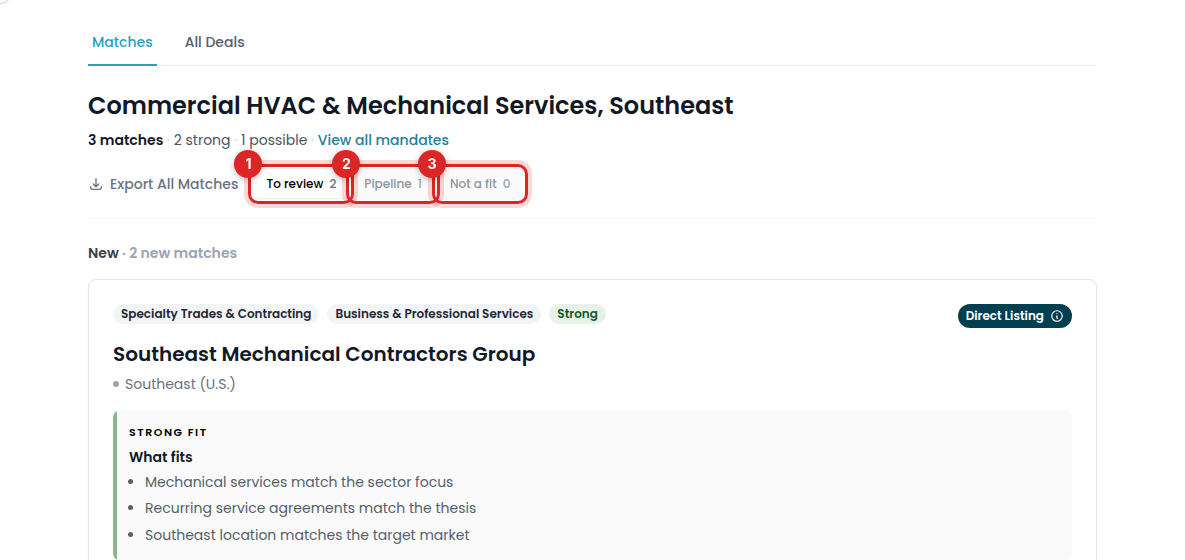
A published mandate with its matches and the To review, Pipeline, and Not a fit tabs marked

The pipeline is shared across your firm, so your team can see which deals are already in progress.

Step 5: Let the mandate learn

As you review matches, your mandate picks up learnings: patterns in the deals you saved or passed on. Learnings shape your future matches.

Open My Mandates and find your mandate.

Select Learnings found.

Review the patterns. To keep a learning shaping your matches, do nothing. If a learning isn't useful, select Ignore, then confirm. You can open Ignored learnings and select Restore later.
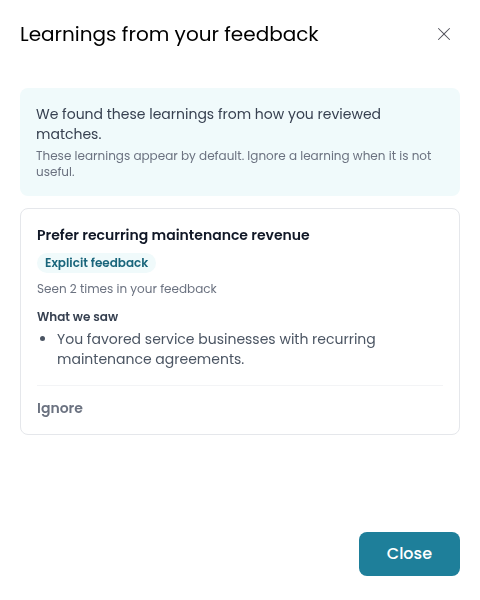
Mandate learnings with the Ignore control

Note: Learnings don't rewrite your mandate criteria. To change your criteria, select Edit on the mandate and update them yourself.

Step 6: Archive when you stop looking

Archive a mandate to stop matches and remove it from sellers' view.

Open My Mandates and find the mandate you want to stop.

Select Archive on its card, then confirm Archive this mandate?

Open the Archived tab to find it again. Select Unarchive and confirm when you want to restore it.
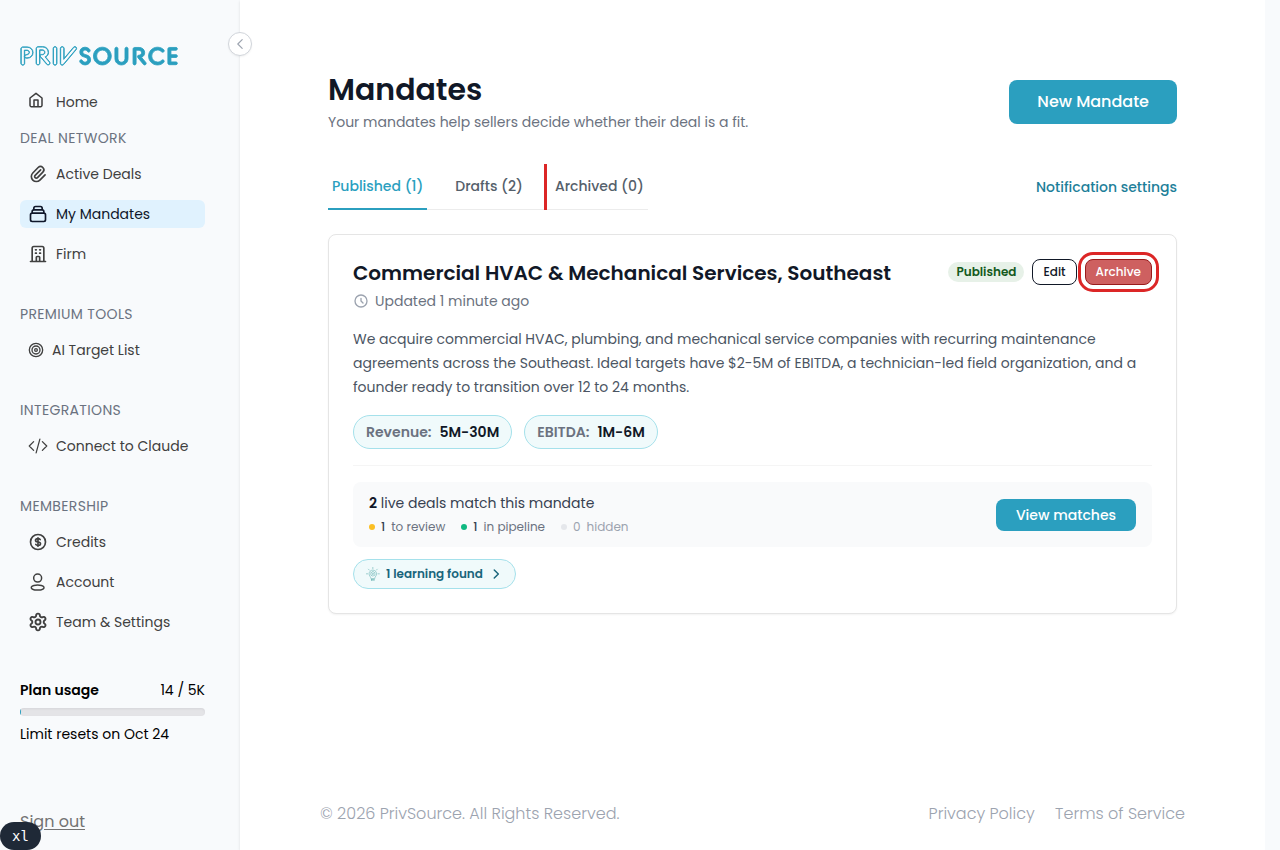
My Mandates with the Archive control and Archived tab

Tip: You don't need a membership to publish a mandate or receive match emails. You need one to open the teaser and contact the seller.

Frequently asked questions

Can I have more than one mandate?

Yes. Create a separate mandate for each thesis so each one has focused criteria.

Can I set up a mandate as a free buyer?

Yes. You don't need a paid membership to publish a mandate or receive match emails. Free monitoring continues after your preview ends. Membership unlocks deal materials and seller contact.

Which locations should I include?

Choose the states or regions where you want to invest. "United States" includes the whole country.

Do learnings change my mandate automatically?

No. Learnings shape your future matches, but your criteria stay as you set them. Edit the mandate yourself to change its criteria, and ignore learnings that aren't useful.

Do this with Claude

Connect PrivSource to Claude once and run this workflow from a conversation. Same account, same access. Set up the connection

Starter prompt

Full workflow guide →
Copy into Claude

Using PrivSource, help me publish a buyside mandate. We're looking to acquire [type of company] in [geography] with [size range, e.g. $1M-$5M EBITDA]. Draft the mandate, show me what's missing before it can be published, and fill in the remaining fields with me. Publish only after I confirm, then check whether it already has matched deals.

Then try

  • “Publish a buyside mandate for HVAC platforms in Texas with $1M+ EBITDA”
  • “Show me this week's matches and save the strong ones to my pipeline”
  • “What do my mandate learnings say I should change?”

Agent instructions

The skill file PrivSource publishes for this workflow. Give it to any agent that supports skills, or read it to see exactly what the tools do.

Raw SKILL.md
Show the full instructions

PrivSource Buyside Mandates

Buyside mandate tools are buyer-side. They manage the authorized buyer account's own acquisition mandates — the criteria sellers browse when looking for buyers — and the deal matches PrivSource finds for published mandates. Drafts are private; publishing makes a mandate visible to seller accounts.

Workflow

  1. Call privsource_whoami if unsure whether the account has buyside-mandates access.
  2. Call list_buyside_mandates to find existing mandates before creating a new one. Filter with status (draft, published, archived).
  3. Call create_buyside_mandate with a title to start a draft. Add criteria in the same call or later with update_buyside_mandate.
  4. Call get_buyside_mandate and check publishable and missing_fields before publishing.
  5. Call publish_buyside_mandate only when the user asks to publish and missing_fields is empty. Publishing makes the mandate visible to sellers, so confirm intent first.

Reviewing Deal Matches

PrivSource matches live deals against published mandates. Each mandate from list_buyside_mandates includes match_count, strong_match_count, and to_review_count — use them to pick which mandate has matches worth reviewing.

  1. Call get_buyside_mandate_matches with the mandate id. Matches come back ordered by fit with a score, a fit_band (strong or possible), an explanation, and a review_state. Filter with review_state (to_review, in_pipeline, not_a_fit); meta.review_state_counts shows the split.
  2. If meta.matches_first_time_finding is true, PrivSource is still building the mandate's first matches — say matching is in progress rather than reporting that nothing matched.
  3. Each match includes a deal summary. available: false means an engaged stale match remains visible for history but the deal is no longer on the market. direct_listing: true means the seller shared it directly; shared_by identifies that seller, and Direct Listings lead their fit band.
  4. Pass an available match's deal.id to get_deal for full details; send_deal_outreach works on contactable deals.
  5. Call update_buyside_mandate_match to record the buyer's verdict: review_state: in_pipeline saves the deal to the buyer's pipeline (Interested on a direct listing), not_a_fit passes on the deal and hides it from the feed, and to_review undoes either. Set feedback_comment only for not_a_fit matches to explain why you passed.
  6. Saving to pipeline and hiding act for the whole buyer account, so confirm intent before changing review states in bulk.

Mandate Learnings

When the account has mandate learnings, get_buyside_mandate includes learnings and archived_learnings arrays from the buyer's match feedback. Each learning has these fields:

  • id: the identifier for update_buyside_mandate_learning.
  • dimension: the observable deal attribute (sector, geo, size, business_model, customer, or characteristic).
  • direction: the ranking effect (exclude, penalize, or boost).
  • rule: one declarative matching rule.
  • evidence_type: explicit for comments or implicit for behavior.
  • event_count: the number of supporting feedback events.
  • status: pending for a one-event signal or active after two or more supporting events.
  • observations and evidence_match_ids: the evidence summary and referenced matches.

learnings_analyzing is true while a refresh is running. Treat a pending learning as a weak signal.

Review active learnings before editing a mandate. Apply agreed changes with update_buyside_mandate.

Ignore a learning with update_buyside_mandate_learning and archived: true. Restore it with archived: false. These are the same actions as the dashboard.

Field Meaning

All criteria describe the companies the buyer wants to acquire.

  • min_revenue / max_revenue and min_ebitda / max_ebitda: target company financials in whole US dollars. Use the no_min_* / no_max_* booleans when the mandate explicitly has no bound.
  • industry_groups: the primary industry must come from the PrivSource mandate taxonomy (enumerated in the tool schema); each group takes optional sub_industries and a free-text niche. The array replaces the mandate's existing groups.
  • locations: PrivSource location names such as countries, U.S. regions, U.S. states, or Remote. The array replaces the mandate's existing locations.
  • industry_agnostic / no_geographic_preference: set these instead of industries/locations when the mandate has no preference.
  • description: the investment thesis; must be at least 100 characters before publishing.
  • close_timeline: required before publishing.

Publish Requirements

Publishing requires a descriptive title, a 100+ character description, industry preferences (groups, agnostic, or exclusions), at least one revenue or EBITDA value, geography (locations or no preference), and a close timeline. Resolve missing_fields from get_buyside_mandate first.

Error Handling

  • Archive and unarchive with update_buyside_mandate's archived flag. Archived mandates must be unarchived before publishing.
  • If a tool reports validation errors, fix the named fields and retry rather than guessing new values.

Feedback notes are only available for not_a_fit matches. Set the state and pass reason together, or edit an existing pass reason.

Exports

Call get_buyside_mandate_matches_export with the mandate id.
The response returns the file directly in export.content. No browser sign-in is needed.
If encoding is base64, decode content to bytes. If it is utf-8, use the text directly.
Save the result using filename and content_type, or analyze the CSV text in the agent.
Check ready first. Unavailable exports return unavailable_reason without file content.
The CSV includes all dashboard review states and fixed columns. Paid buyer and Deal Network access are required.
dashboard_url is optional context. It is not required to get the file.

Stuck on a step?

Tell us what you need help with.

Related guides