Connect your AI assistant to PrivSource to search deals, manage mandates, and build buyer and target lists from a conversation. The connection uses your existing account and plan access, and works on free and paid buyer and seller accounts.
This guide walks you through enabling access and connecting Claude. Other supported MCP clients use the same PrivSource server URL. For an overview of everything you can do, see PrivSource MCP for Claude at privsource.com/mcp-for-claude.
Step 1: Enable access in PrivSource
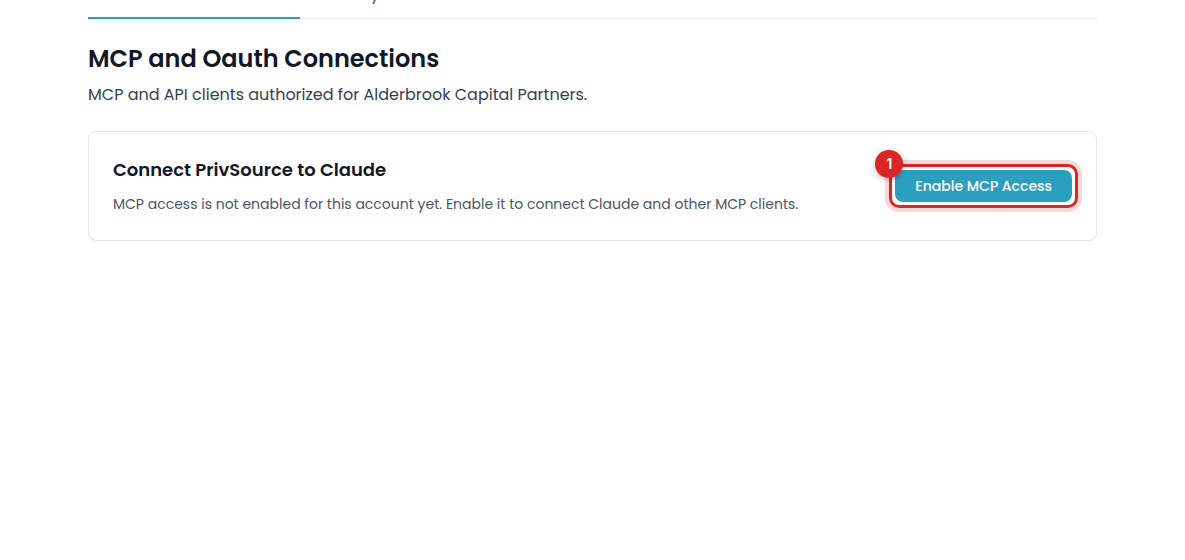
In the left navigation, click Connect to Claude. If you see Enable MCP Access, click it.
Step 2: Add PrivSource to your assistant
In Claude, open Settings, then Connectors, and choose Add custom connector.
Name the connector PrivSource and enter this URL:
https://api.privsource.com/mcp
Leave the advanced OAuth fields blank and click Add.
For another MCP client, follow its custom connector setup using the same URL. See our developer docs at privsource.com/docs for connection details, or the step-by-step setup guide at privsource.com/docs/claude-setup.
Step 3: Authorize your team
Follow the PrivSource sign-in prompt. Choose the team you want to connect, then approve access.
You can revoke the connection from Connect to Claude in PrivSource.
Step 4: Try a task
Ask something specific, such as:
"Using PrivSource, find live HVAC deals in Texas with $1M+ EBITDA."
The assistant uses PrivSource tools within your team's existing access.
What you can do from Claude
Buyers
-
Find live deals and reach out to sellers
-
Build a target list of companies, with custom data columns and CEO/Owner contacts
Sellers
-
Review the buyers matched to your deals and choose who sees each one
-
List a deal from a teaser, CIM, or description
-
Build a buyer list, or expand one you already have with net-new buyers
Each workflow has a copy/paste prompt and a step-by-step guide at privsource.com/mcp-for-claude. Relevant help articles also include a Do this with Claude section.
If the connection stops working
Remove the connector in your assistant and reconnect it. If it still shows Pending or fails to respond, contact support@privsource.com .
Note: Connecting an assistant doesn't add a membership or unlock tools outside your plan.