MCP Integration
Connect PrivSource to Claude
Add PrivSource as a Claude custom connector, then authorize Claude to use your PrivSource team through OAuth. Follow the screenshots below.
Connect PrivSource to Claude
Follow these screenshots to add the PrivSource MCP connector in Claude.
PrivSource MCP URL
https://api.privsource.com/mcp
-
1
Open Claude connectors
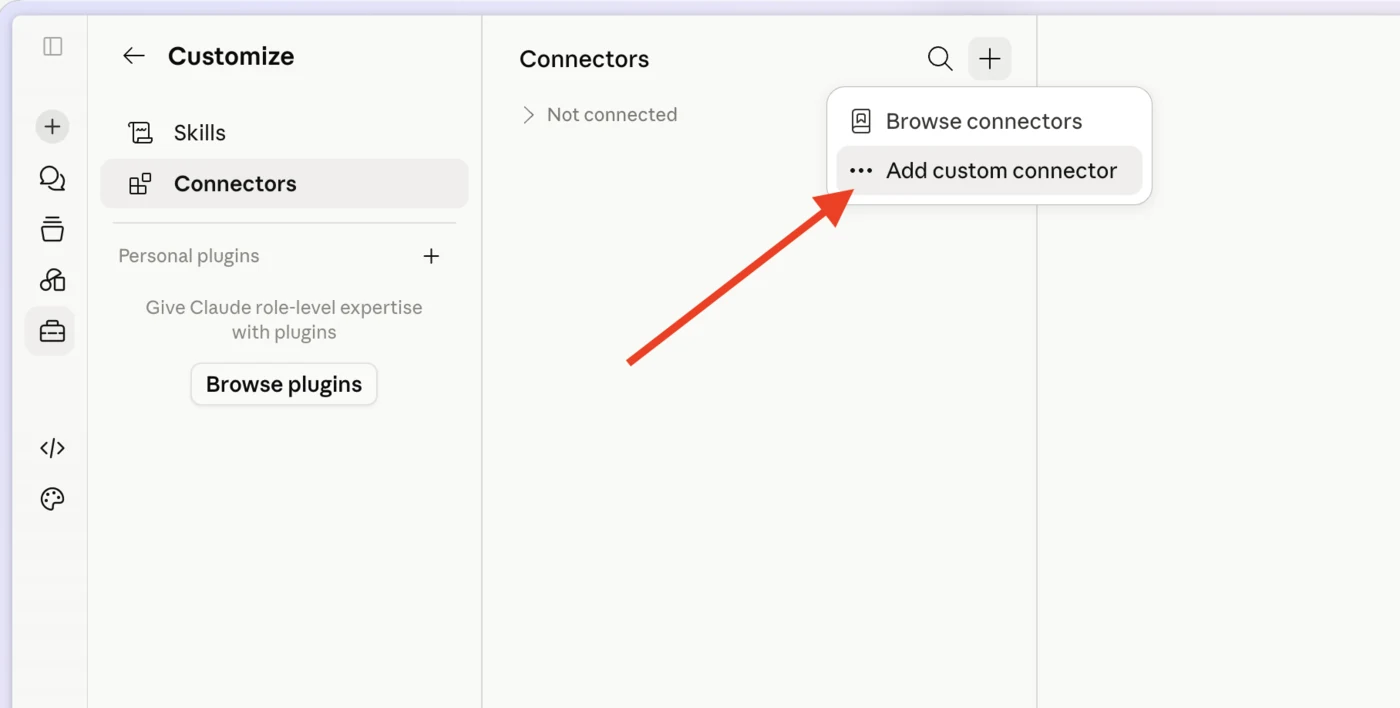
In Claude, open Customize, choose Connectors, click the plus button, then select Add custom connector.
-
2
Add PrivSource
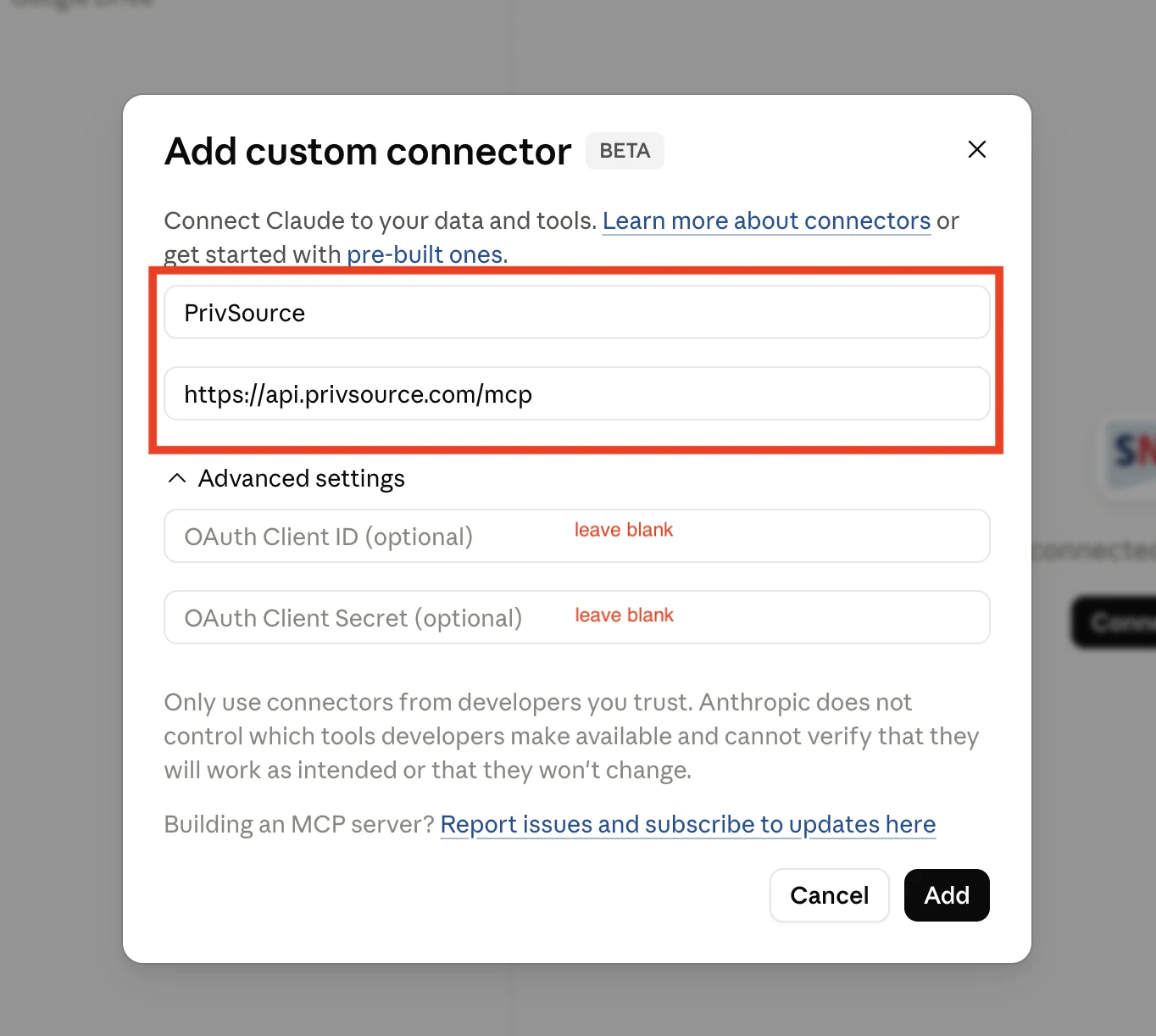
Name the connector PrivSource, enter the PrivSource MCP URL, leave advanced OAuth fields blank, then click Add.
-
3
Connect PrivSource
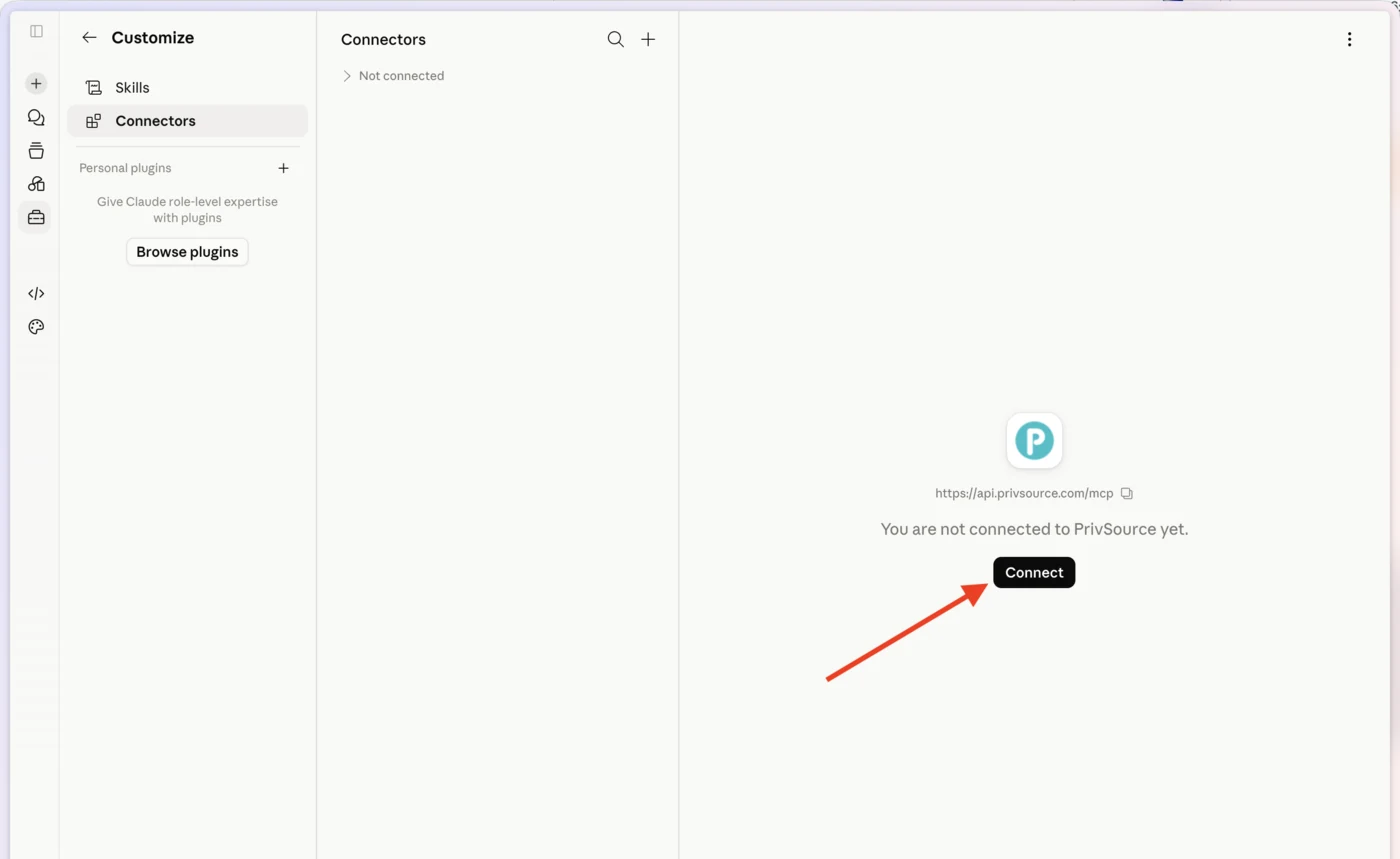
After Claude creates the connector, click Connect on the PrivSource connector panel.
-
4
Authorize Claude
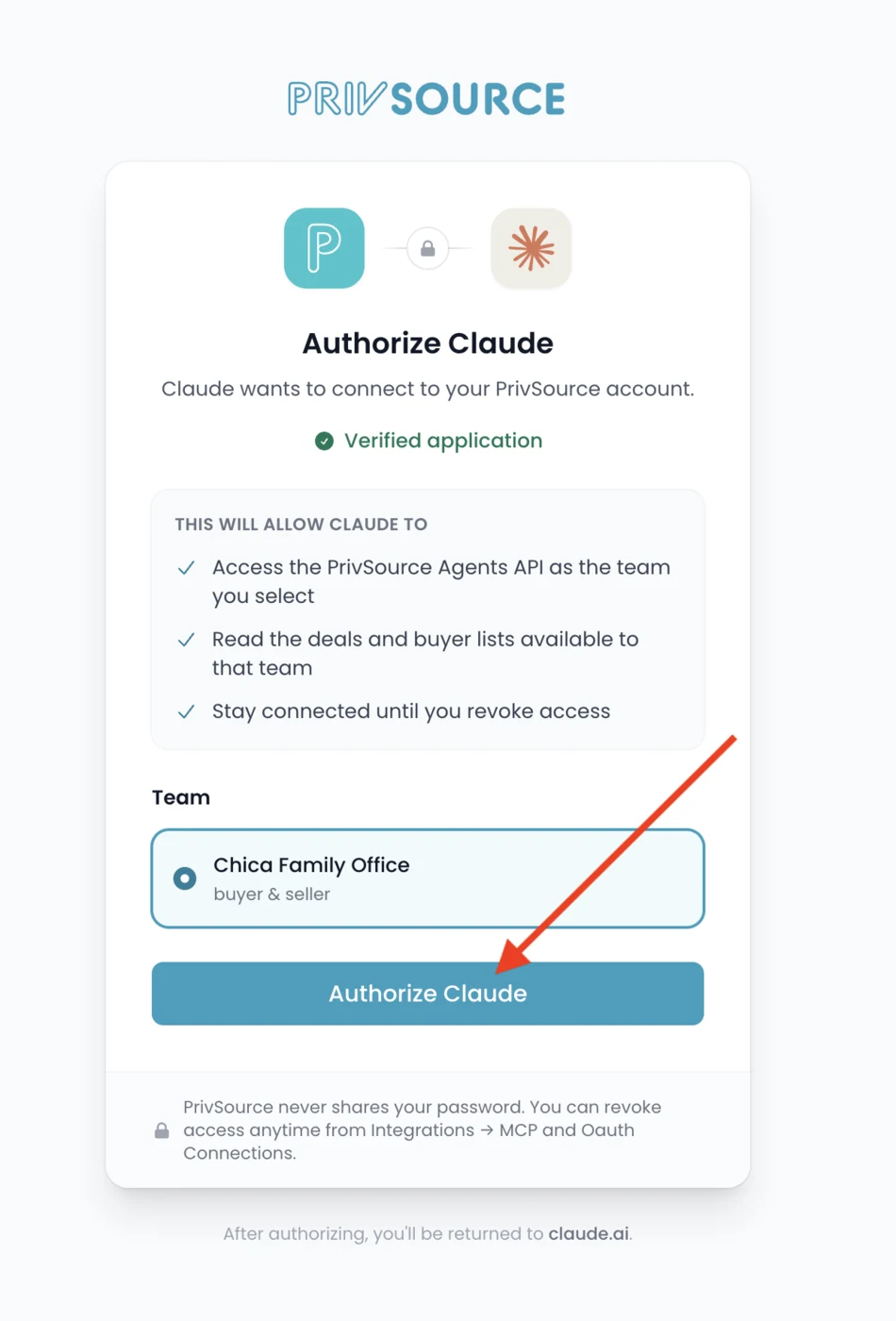
In PrivSource, select the team you want Claude to use, then click Authorize Claude.