MCP Integration
Connect PrivSource to Microsoft Copilot Studio
Add PrivSource as an MCP tool, authorize the PrivSource team the agent should use, then add the connected tool to your agent.
Connect PrivSource to Microsoft Copilot Studio
Create a PrivSource MCP tool, authorize your team, and add it to a Copilot Studio agent.
https://api.privsource.com/mcp
-
1
Create a tool in Copilot Studio
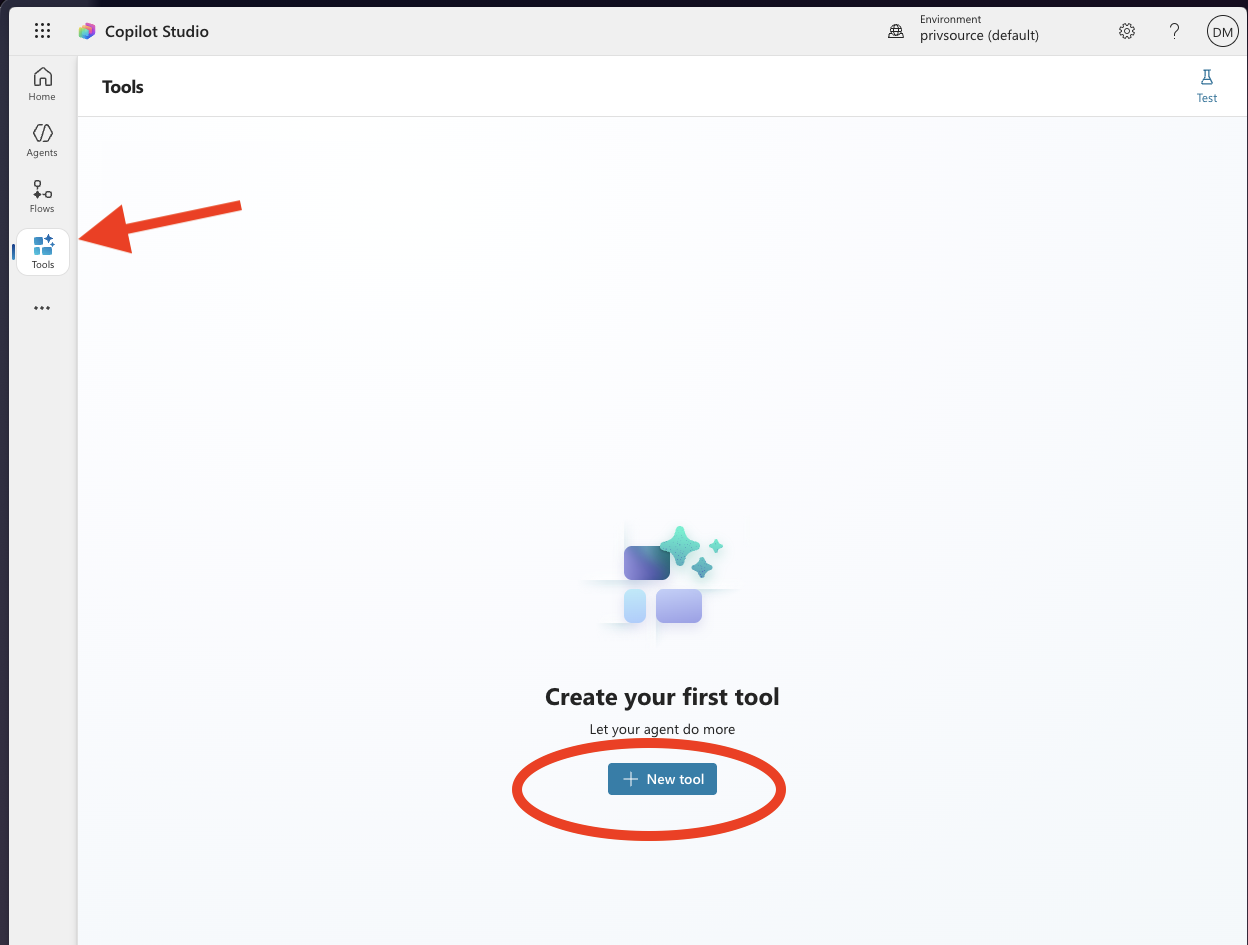
Open Tools in Copilot Studio, then select New tool.
-
2
Configure the PrivSource MCP server
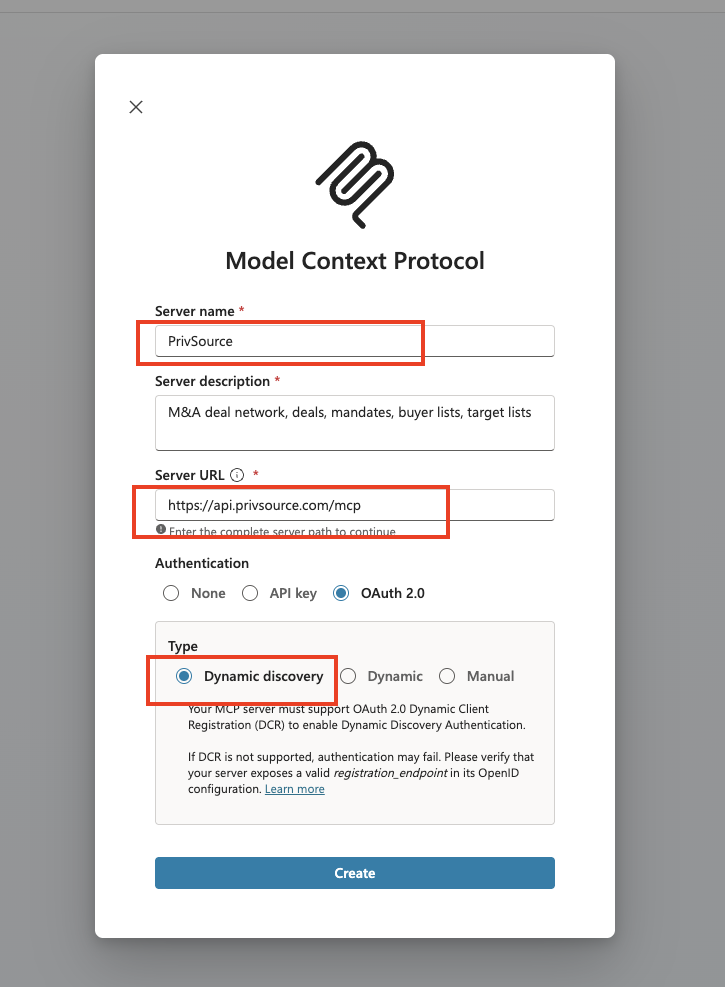
Choose Model Context Protocol. Name the server PrivSource, describe when your agent should use it, enter the PrivSource MCP URL, select OAuth 2.0 and Dynamic discovery, then select Create.
-
3
Add a tool to your agent
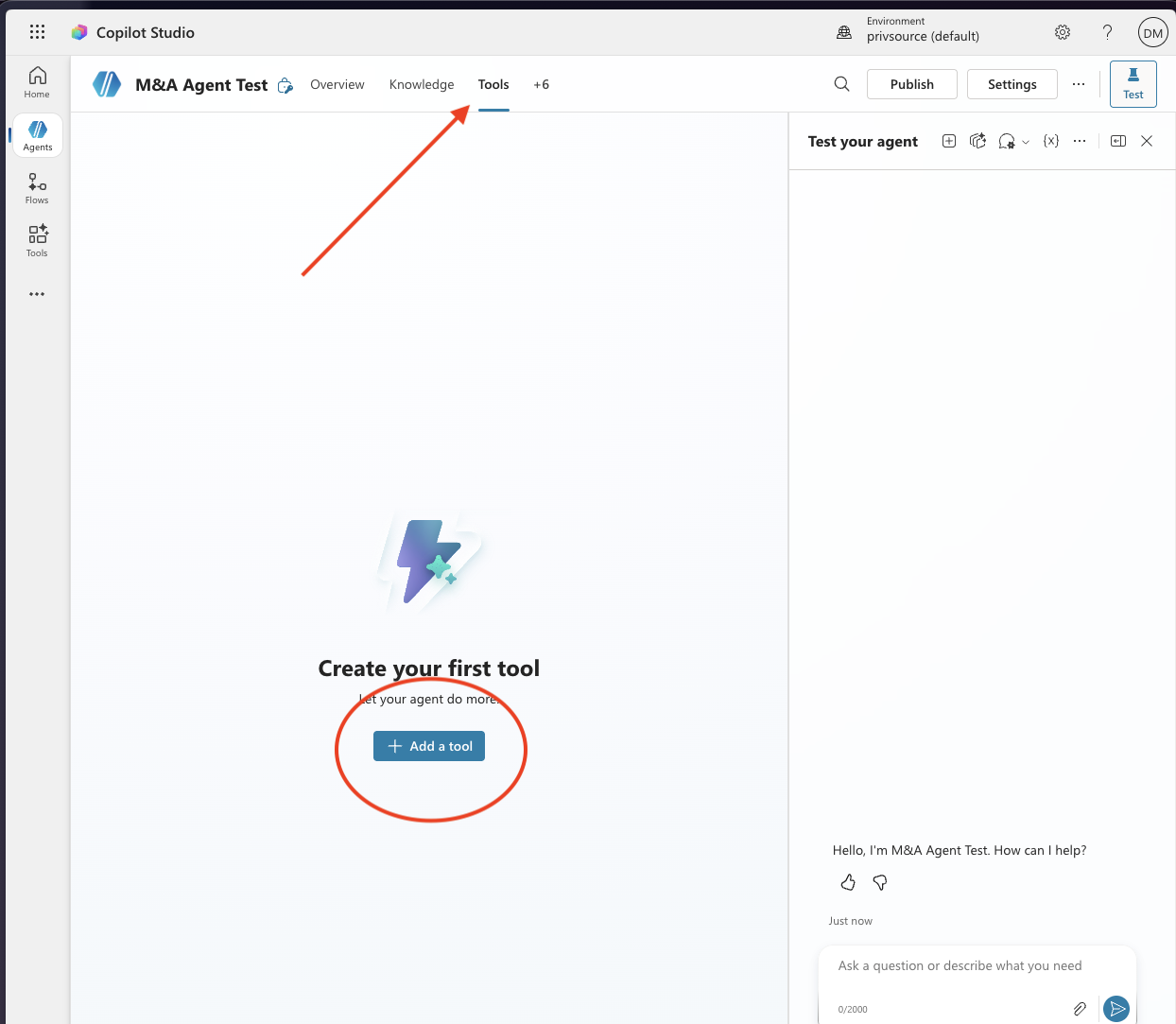
Open your agent, select Tools, then select Add a tool.
-
4
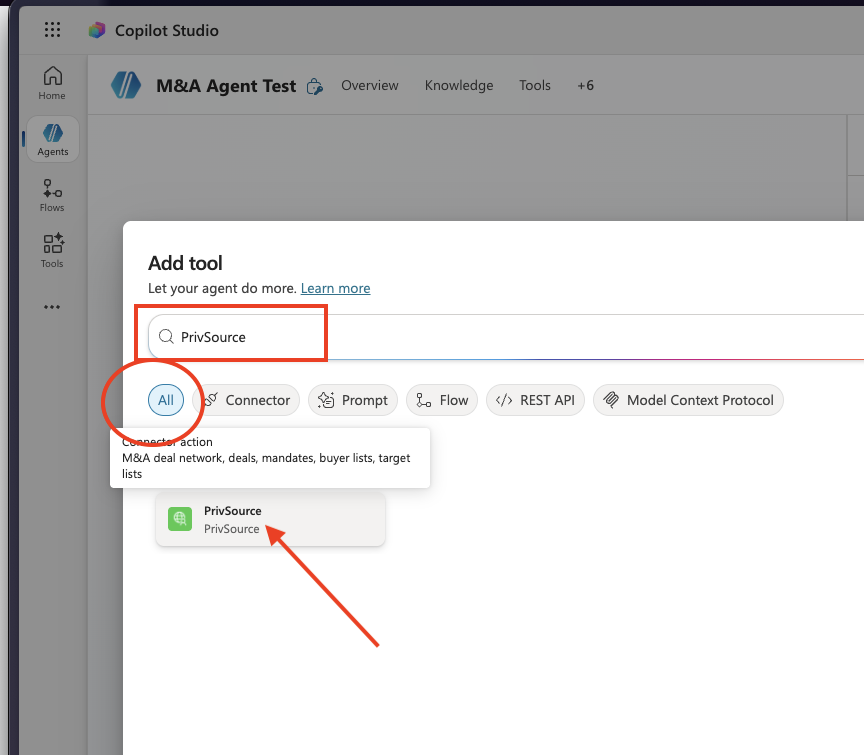
Select PrivSource
Search for PrivSource and select the PrivSource tool you created.
-
5
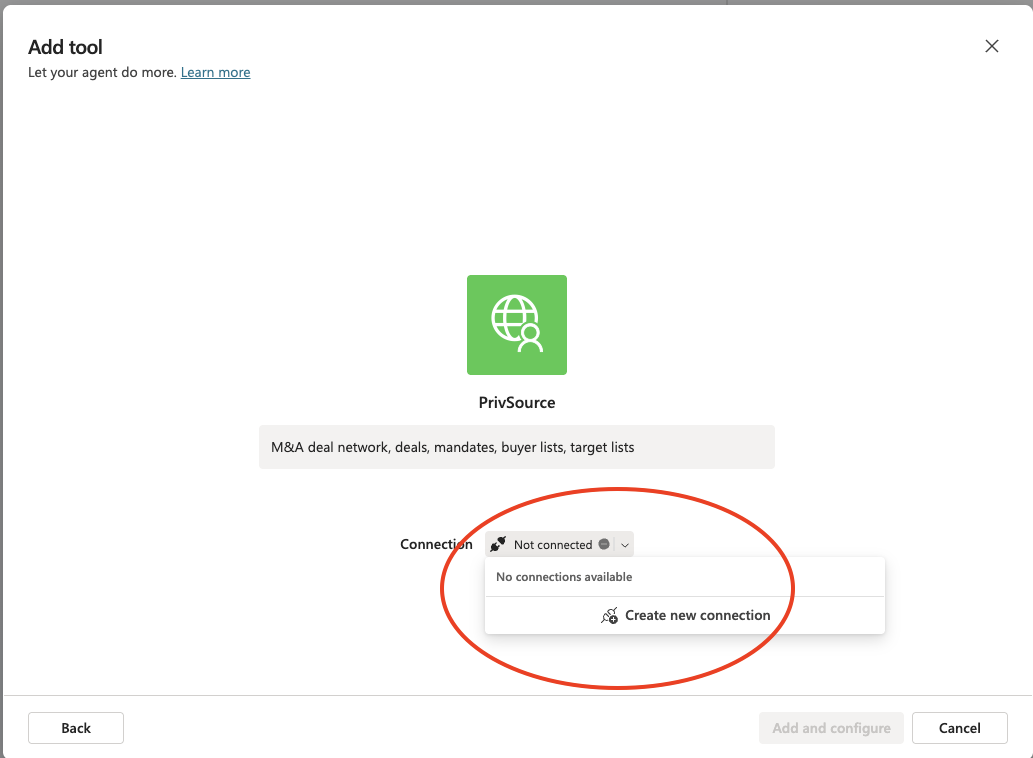
Create a connection
Open the Connection menu and select Create new connection.
-
6
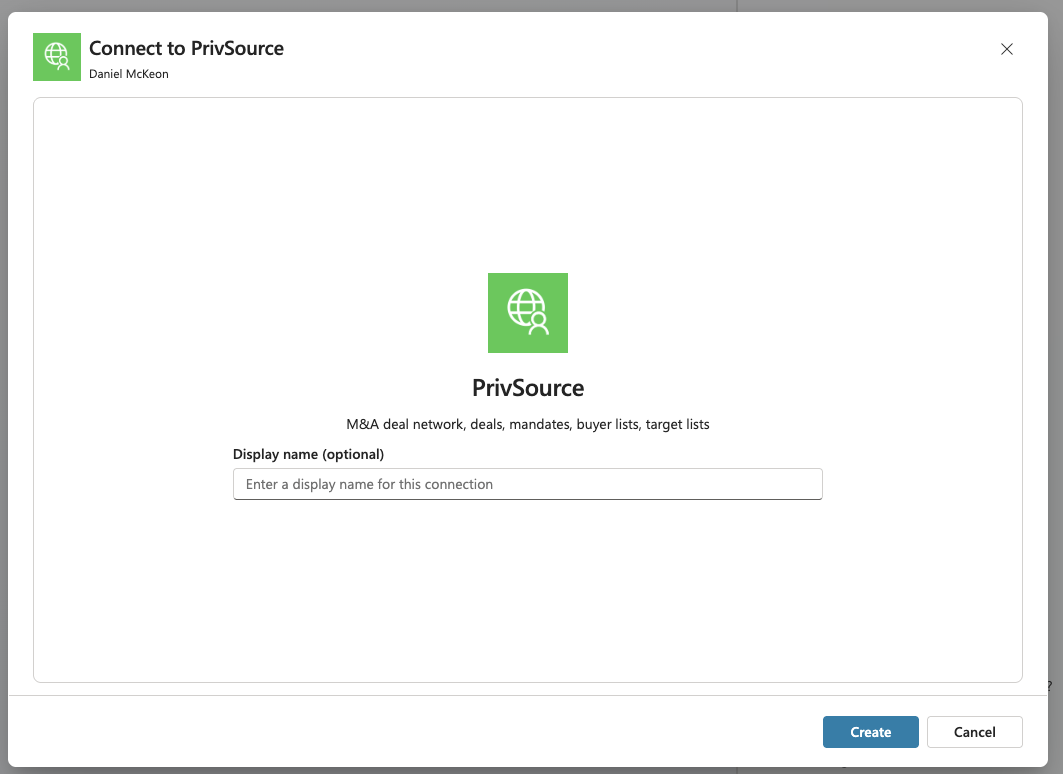
Start the PrivSource connection
Optionally enter a display name, then select Create.
-
7
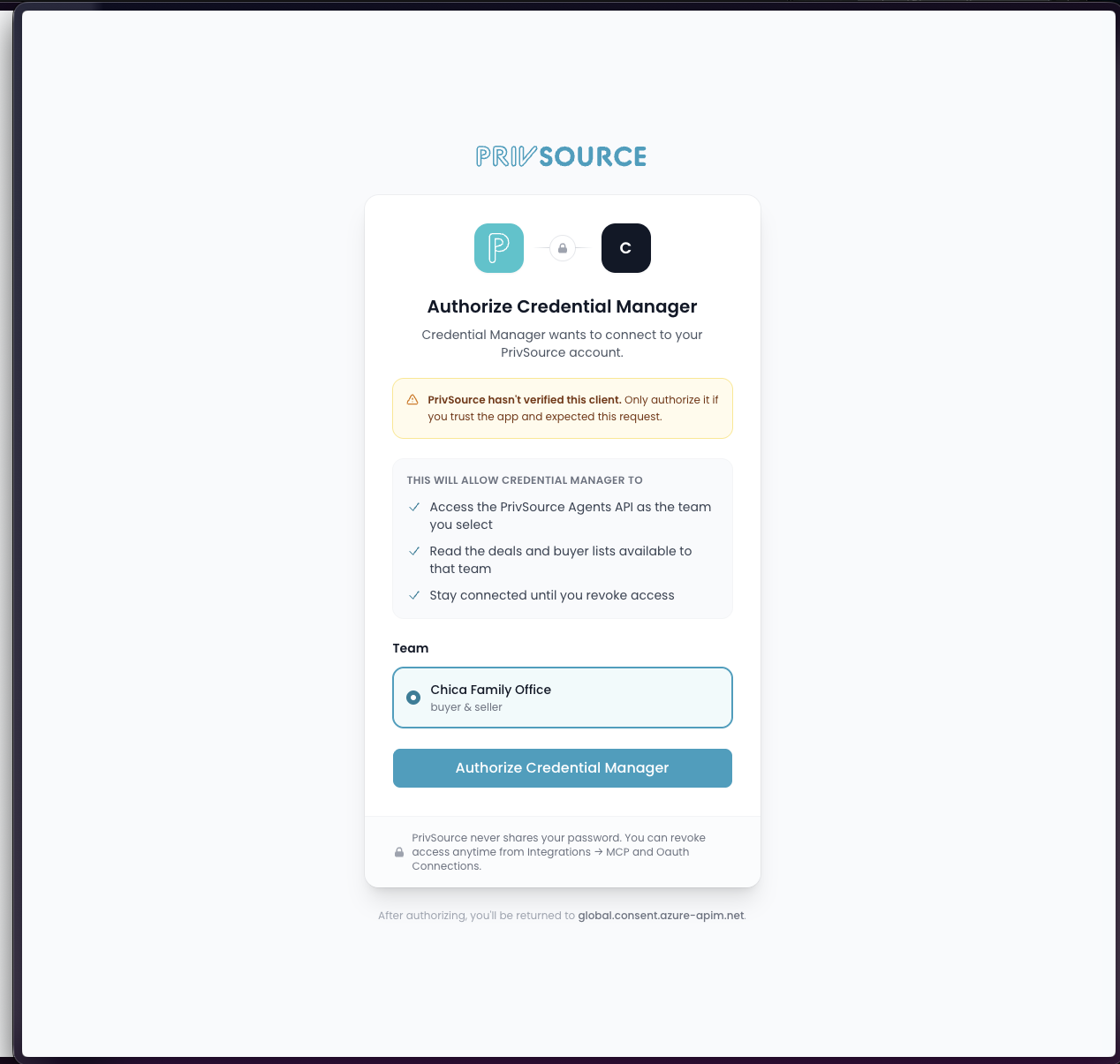
Authorize your PrivSource team
Sign in to PrivSource if needed, select the team the agent should use, and authorize the connection.
-
8
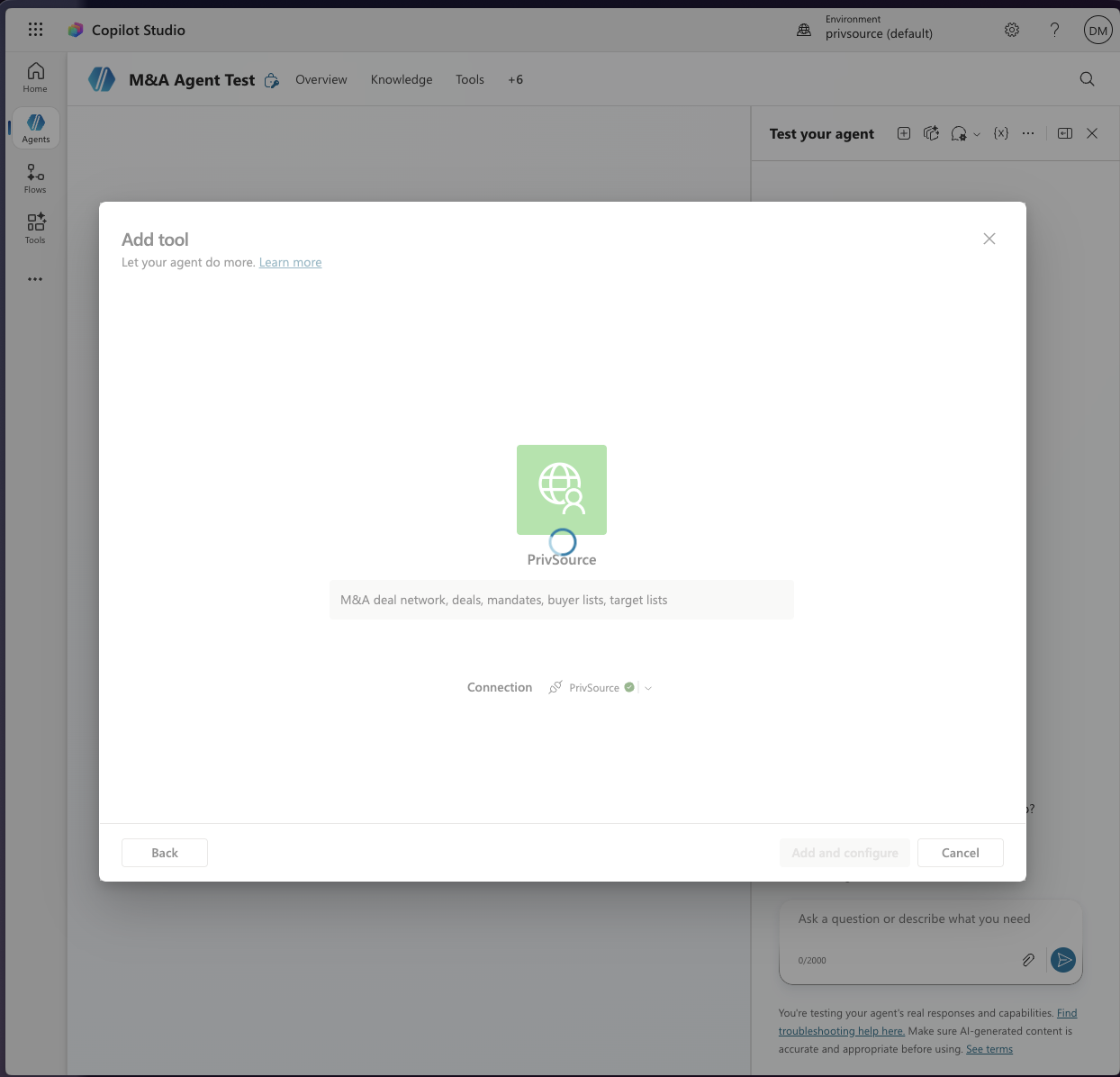
Add PrivSource to the agent
Return to Copilot Studio. Once the connection is ready, select Add and configure.
-
9
Confirm the connection
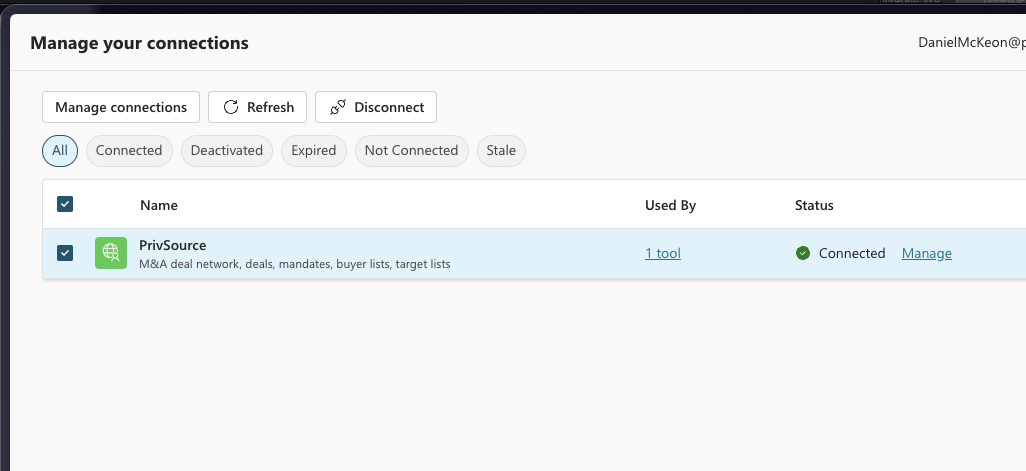
PrivSource now appears as connected in Manage your connections. Your agent can discover the MCP tools available to the authorized team.