Your mandate tells us what you want to buy. We'll find you deals that fit, combining those listed directly on PrivSource by sell-side advisors with others sourced by your AI sourcing agent. This guide walks you through reviewing matches, contacting sellers, tracking each deal in your Pipeline, and following up.
Step 1: Get your matches
After you publish a mandate, matching takes a few minutes. We email you when your first matches are ready, or you can check back in your account.
If you haven't published a mandate yet, publish a mandate first.
Step 2: Review your matches
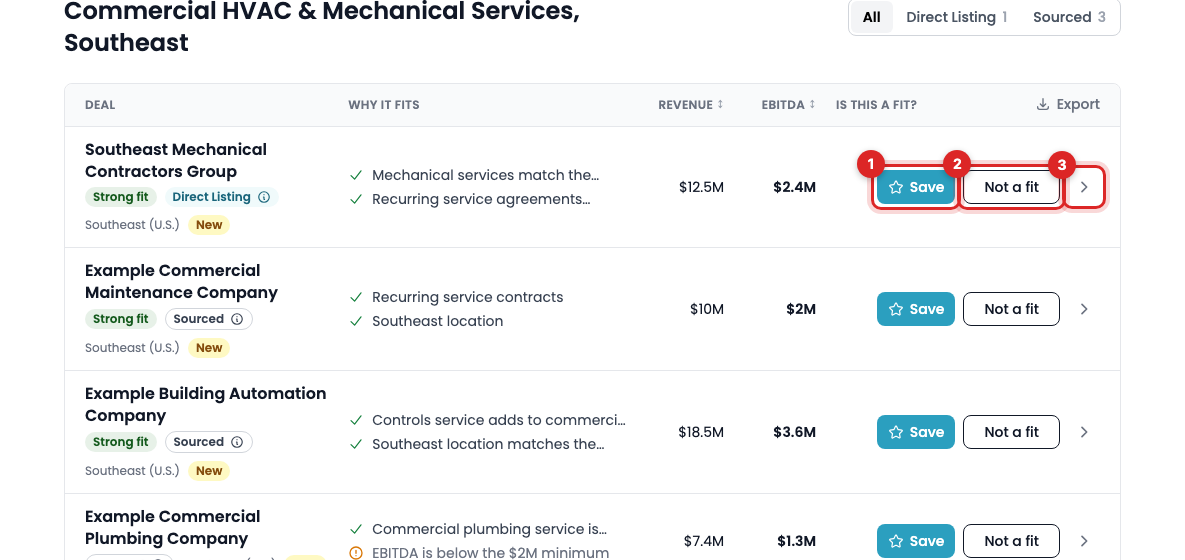
Open Matches to see the deals that fit your mandate in the To Review tab.
Each row shows why the deal fits, where it may be a stretch, and its revenue and EBITDA. Select a deal to open it beside the list with the full details and the advisor's next steps.
Free buyers see matched Direct Listings and their unlocked sourced deals. Select Unlock all for the other sourced deals.
- To pursue a deal, select Save. Save adds the deal to your Pipeline. On a Direct Listing, it also notifies the seller. The advisor brought that deal to PrivSource and chose buyers whose mandate fits.
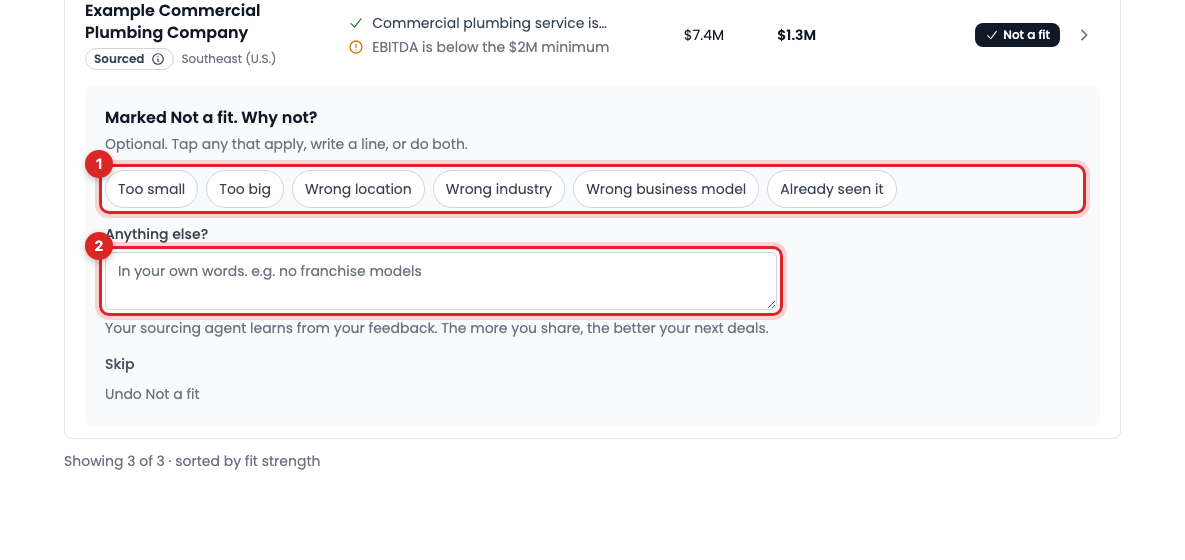
- To pass, select Not a fit. Tap any reasons that apply or write a line, then select Done. Your sourcing agent uses your reasons to decide what to bring back next.
- Changed your mind? Select Undo right after you save or pass.
Tip: Review your full list before you start outreach. It's easier to prioritize when you can compare the opportunities.
Step 3: Reach out to sellers
Note: Only paid members can reach out to sellers. Learn more about membership options.
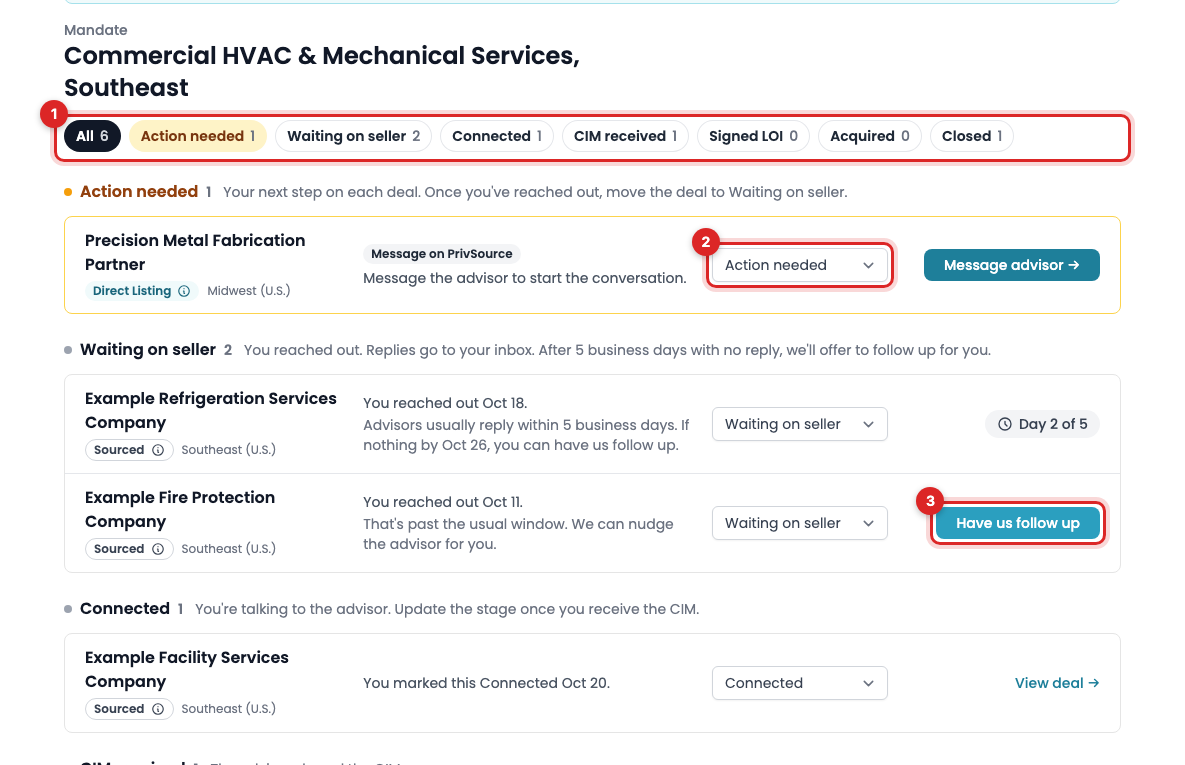
Open the Pipeline tab. Each new deal starts in Action needed, with a button for its next step. How you contact the seller depends on how the deal came to you.
Direct Listings
Selecting Save notifies the seller. Your message starts the conversation.
Open the deal and review the available materials. If the seller provided an NDA, select Sign NDA, download and sign it, then upload the signed copy. It goes to the seller with your message.
Select Message advisor. We start a short draft from your firm profile and mandate. Edit it so it says who you are, why the deal fits, and the next step you want, then select Send. The deal moves to Waiting on seller.
Sourced deals
These deals come from brokers, M&A advisors, and bankers who market them publicly. Select View full listing and follow the contact or NDA instructions there. When the advisor takes inquiries through their firm's website, select Save first, then select Contact advisor.
Saving a sourced deal to your Pipeline helps you track it. It does not send an inquiry to the seller. After you reach out, select I already reached out so the deal moves to Waiting on seller.
Step 4: Track every deal in your Pipeline
Your Pipeline groups saved deals by stage:
- Action needed: your next step on the deal.
- Waiting on seller: you reached out and are waiting for a reply.
- Connected: you're talking to the advisor.
- CIM received: the advisor shared the CIM.
- Signed LOI: you signed a letter of intent.
- Acquired: you closed the acquisition.
- Closed: you passed, or the deal is no longer available.
Select a stage at the top to see only those deals. Use the stage menu on each deal to record progress. PrivSource also moves deals for you: a message you send through PrivSource moves the deal to Waiting on seller, and a deal that goes off the market moves to Closed.
Step 5: Follow up
Seller replies go to your email inbox. Messages sent through PrivSource also appear in the deal's message history.
For Direct Listings, if the seller hasn't sent next steps, select Follow up on the deal to send another message.
For a sourced deal, follow up through the advisor's chosen channel. Advisors usually reply within 5 business days. If there's still no reply, select Have us follow up. The PrivSource team follows up with the advisor for you, and we let you know when they reply, or within 5 business days if they don't.
Step 6: Watch for new deals
Your mandate keeps working after the first round. We email you when your sourcing agent finds new deal fits or when an advisor hand-picks you for a deal.
Return to To Review to review new opportunities. If your acquisition criteria change, edit your mandate so future matches reflect what you want to buy.
Use MCP to manage your deal flow
MCP connects an AI assistant, such as Claude, to your PrivSource account. Follow Connect Claude, ChatGPT, or your own agent to set up the connection.
Once connected, you can ask your assistant to:
- Review matches for a published mandate and summarize why each deal fits, including where it may be a stretch.
- Save selected deals to your Pipeline, mark deals Not a fit with your reasons, or move them back to To Review.
- List the deals in each Pipeline stage and move a deal to a new stage when you tell it what happened.
- Read available deal details and message history, then draft an introduction or follow-up.
- Send a message on a contactable deal after you approve the recipient and message.
- Ask PrivSource to follow up with the advisor on a sourced deal that has no reply after 5 business days.
Try this prompt:
Review the new matches for my published mandate in PrivSource. Summarize why each deal fits and where it may be a stretch. Suggest which deals I should pursue. Ask me before saving, passing, or sending messages.
For follow-up:
Read my PrivSource Pipeline. List the deals in Action needed and Waiting on seller with the next step for each. Draft follow-ups for the Direct Listings where we're still waiting. Show me each draft before sending it, and ask me before changing any stage.
The connection uses your existing account access. It does not unlock paid materials or let your assistant contact every seller. For a sourced deal that requires the seller's website, use that website. Use the PrivSource deal page for file attachments and signed NDA uploads; MCP does not upload those files or sign an NDA for you.