Refine your buyer list, get contacts, and export

Use this when

Your first list is back and you want to tighten it, get emails and phone numbers, or share it with your team.

This guide walks you through feedback, refinement, contacts, and export.

Step 1: Give feedback on buyers

Open the completed list. Give buyers a thumbs up or thumbs down and add a short reason, such as "too small" or "strong industry fit." Rate as many as you like. You need at least 5 to refine.
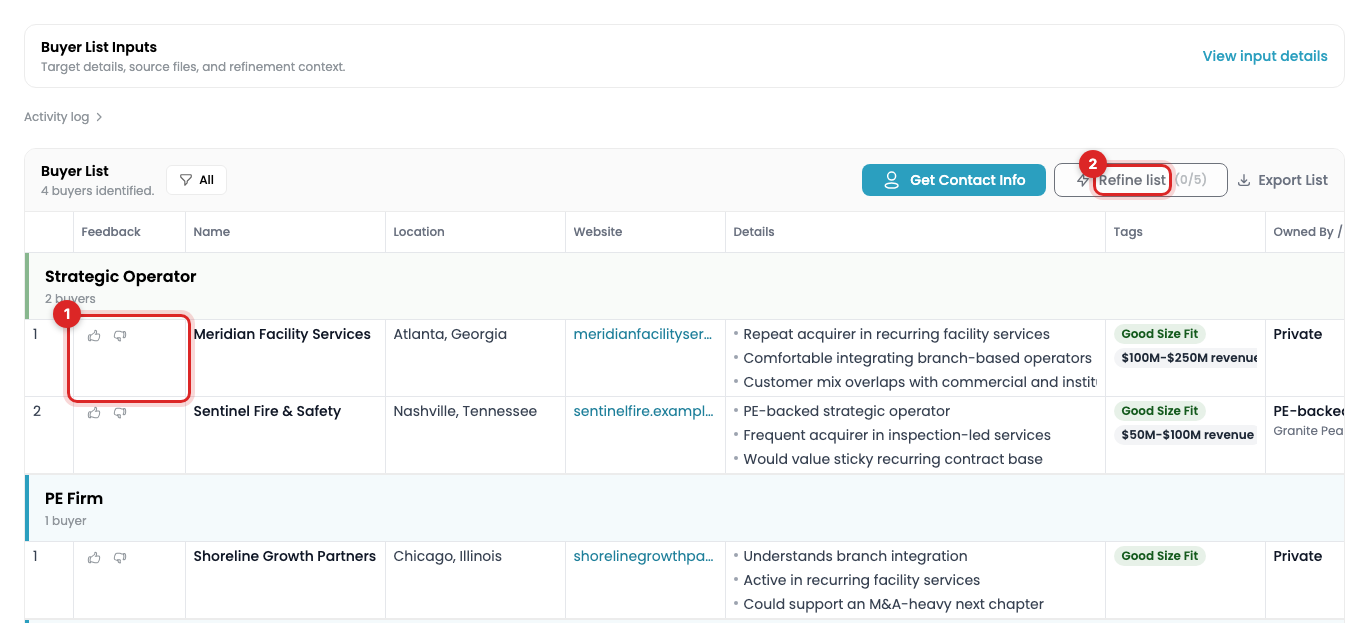
Buyer rows with Positive, Negative, and Refine list marked

Note: Thumbs up buyers carry over to the next version automatically. Thumbs down doesn't delete a buyer. It tells the next version what to avoid. Every version saves, so nothing gets lost.

Step 2: Refine your list

Click Refine list and add instructions for the next version, such as "drop mega PE firms" or "add more strategics from the Northeast." We combine your instructions with your ratings to research the next version.

Compare against earlier versions anytime. You can refine each list up to 3 times.

Step 3: Get contact information

Click Get Contact Info to find the best M&A contacts at each company or firm. We research the right people and return email, phone, and LinkedIn details where available. Contacts usually take 5 to 10 minutes to complete.
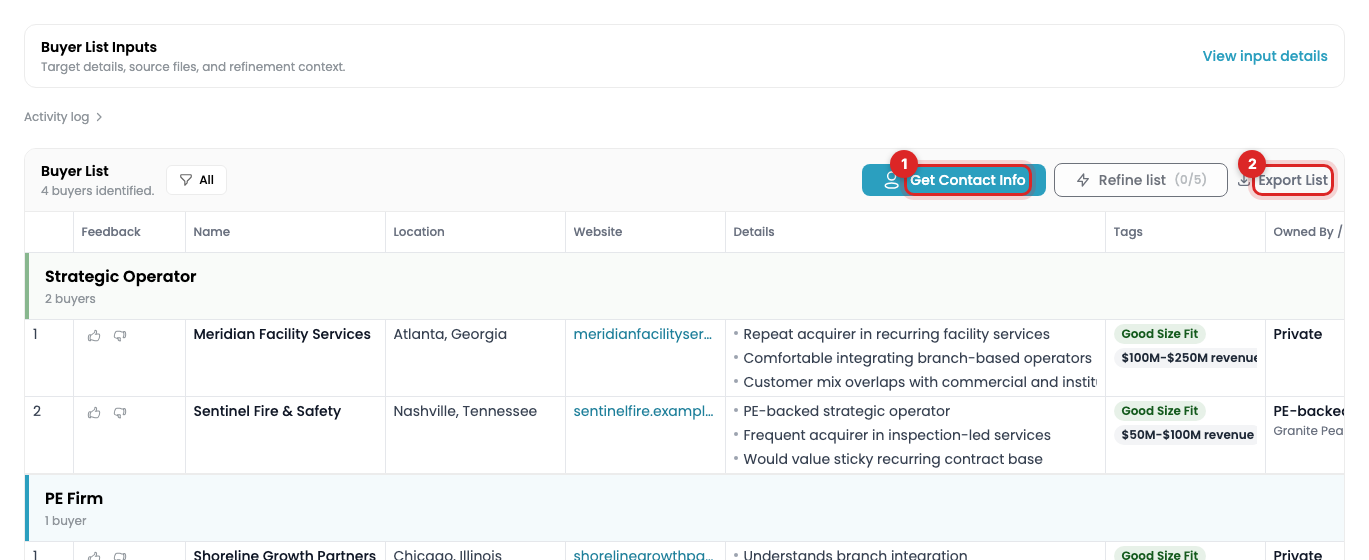
The buyer list header with Get Contact Info and Export List marked

Step 4: Export the results

Click Export List to download an Excel file. The Buyers tab holds company research. The Contacts tab holds individual contacts.

If you export before contacts finish, download the file again once they're ready.

Frequently asked questions

How do I reach the buyers on my list?

Outreach happens outside PrivSource: export the Excel file and contact buyers through your usual outreach.

Why is my Contacts tab empty?

Contact research can finish after buyer research. Export again once contacts show as ready.

Why are some contact fields empty?

We only return details we're confident in. If an email is undeliverable, we leave it out. We aim to return email, phone, and LinkedIn for at least 95% of M&A contacts.

Do this with Claude

Connect PrivSource to Claude once and run this workflow from a conversation. Same account, same access. Set up the connection

Starter prompt

Full workflow guide →
Copy into Claude

Using PrivSource, expand our existing buyer list for a company we're selling: [describe the company — industry, revenue, location]. Here are the buyers we already have: [paste names and websites, or attach the spreadsheet for Claude to read]. Create the buyer list with those as the existing buyers, confirm the criteria with me, then generate net-new buyers that match the same profile.

Then try

  • “Expand this buyer list of 40 HVAC acquirers — find net-new buyers like these”
  • “Which of the new buyers overlap in strategy with my originals?”
  • “Request contact info for the 20 best net-new buyers”

Agent instructions

The skill file PrivSource publishes for this workflow. Give it to any agent that supports skills, or read it to see exactly what the tools do.

Raw SKILL.md
Show the full instructions

PrivSource: Expand an Existing Buyer List

Use this workflow when the user already has buyers (from a spreadsheet, a prior sale process, or an advisor's list) and wants net-new buyers that fit the same profile.

How existing buyers are used

  • They are positive signal: PrivSource studies their shared industries, strategies, scale, and geography to find similar acquirers.
  • They are excluded from results: every supplied buyer is filtered out of the generated list, including spelling, suffix, and website variants. The output is additive.

MCP Workflow

  1. Collect the existing buyers from the user. If they provide a spreadsheet or CSV, read it and extract one entry per buyer: name (required) and website (optional). Skip header, title, and total rows.
  2. Call create_buyer_list with:
    • description: the company being sold (industry, revenue, geography, business model). Criteria describe the target company, not the buyers.
    • existing_buyers: the extracted array, capped at 1000 entries.
  3. Poll get_buyer_list_current_version until status is needs_review, then confirm criteria with the user and adjust via update_buyer_list_criteria.
  4. Call generate_buyer_list and read rows with get_buyer_list_results while status is processing.
  5. Verify additivity if the user asks: no result row should match a supplied buyer.
  6. Continue with feedback, refine_buyer_list, and request_buyer_list_contact_info as in the standard buyer list workflow.

Requirements

  • Seller account.
  • Existing buyer list access enabled on the seller account. If create_buyer_list reports existing buyer lists are unavailable, tell the user to contact PrivSource support.

Notes

  • Passing existing_buyers on create_buyer_list is the MCP path. On the PrivSource dashboard the same feature is a CSV/XLSX upload; both feed the identical generation pipeline.
  • If the user's file has unusual columns, extract the company-name and website columns yourself before calling the tool — the tool takes structured entries, not files.

Stuck on a step?

Tell us what you need help with.

Related guides