Upload a deal and reach buyers who fit

Use this when

You have a new mandate to market, or you want to know what our deals team looks for.

Listing a deal on PrivSource is free. We match your deal to 3,000+ buy-side professionals on PrivSource, and you choose exactly who sees it and who on your team hears from interested buyers.

This guide walks you through uploading a deal, routing buyer responses to the right people, and what to expect after you submit for review.

Step 1: Upload your deal

In the left navigation, click Deals, then Create new deal.

Upload a teaser, or enter a free-form description of your engagement.

Click Continue. We'll format your deal automatically in a few seconds.

Review the details, confirm they're correct, and make any edits.
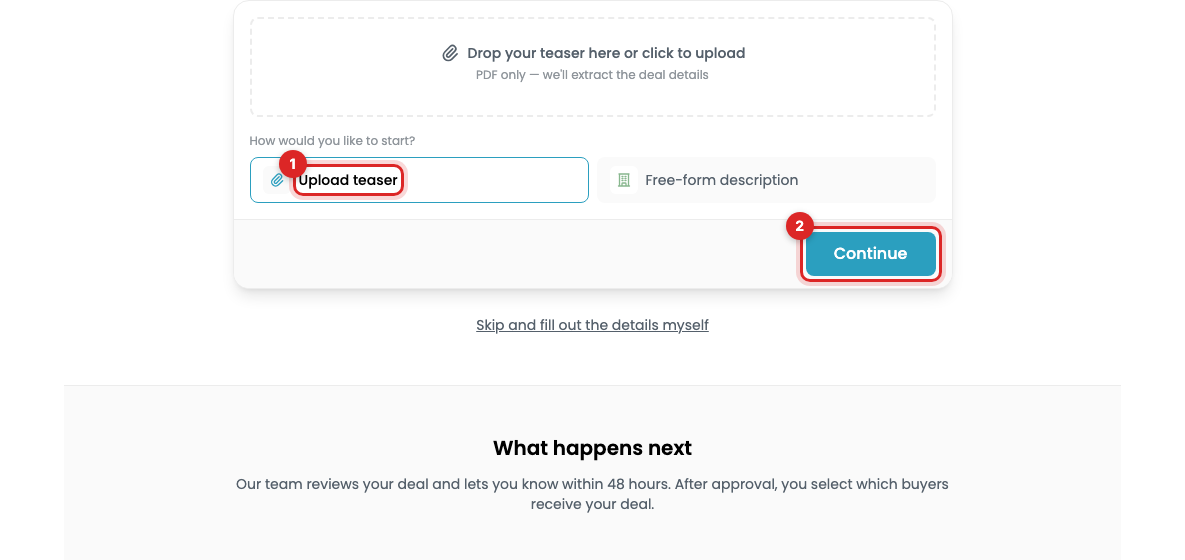
The deal upload form with Upload teaser and Continue marked

đź’ˇ Tip: The more detail you include, the more precisely we can match your deal to buyers.

Attachments

If you uploaded a teaser, it's automatically attached to your deal. You can also attach an NDA.

Note: PrivSource doesn't host the NDA process today. Interested buyers can include a signed copy in their initial outreach to you.

Step 2: Choose who receives buyer interest

If you're the only person at your firm on PrivSource, all buyer outreach goes to the email address on your account.

If multiple team members share your firm's account, buyer outreach goes to everyone by default. To route messages to specific people, such as the deal lead:

Turn on the toggle to send outreach messages to select team members only.

Select the team members who should receive messages for this deal.

Step 3: Submit for review

When your deal is ready, click Submit deal for review.

đź’ˇ Bonus: free AI Buyer List. By default, we'll also look beyond PrivSource for buyers across the market, each with a reason to buy your deal. A complimentary preview appears in the AI Buyer List tab once your deal is approved. Premium sellers can select a full list instead (learn more), or you can opt out at the bottom of the form.

What happens next

Our Deal Team reviews every submission within 48 hours. We'll email you once your deal is approved or declined.

Why a deal may not be approved

Deal size: PrivSource focuses on the lower middle market, typically deals between $500K and $10M. We occasionally consider smaller deals depending on industry and other factors.

Capital raises: Nearly all deals on PrivSource are buyout opportunities. We consider capital raises only in rare cases.

Once your deal is approved

We'll email you and automatically match your deal with buyers whose live mandates fit. You see every match first, then choose who gets the deal.

Next: Choose who sees your deal and message interested buyers →

Do this with Claude

Connect PrivSource to Claude once and run this workflow from a conversation. Same account, same access. Set up the connection

Copy into Claude

Using PrivSource, help me submit our company as a deal. Here's what we have: [paste description or attach the teaser]. Extract the deal details, show me exactly what you'll submit — name, description, deal type, financials, location, industry — and let me correct anything before you send it. Afterwards, tell me how to check the review status.

Then try

  • “Here's our teaser — extract the details and submit our deal”
  • “Submit our commercial HVAC business, $8.5M revenue, $1.7M EBITDA”
  • “Has our submission been approved yet?”

Agent instructions

The skill file PrivSource publishes for this workflow. Give it to any agent that supports skills, or read it to see exactly what the tools do.

Raw SKILL.md
Show the full instructions

PrivSource Pending Deals

Pending deal tools are seller-side. create_pending_deal submits a deal to the PrivSource review queue — it creates a pending-deal resource, not a live deal. The PrivSource team reviews submissions, typically within 48 hours; approved deals become live deals visible to the buyer network and mandate matching.

Workflow

  1. Call privsource_whoami if unsure whether the account has pending-deals access.
  2. Gather the deal details from whatever the seller has — a teaser PDF, a CIM, or a plain description. Extract structured fields yourself; there is no server-side document parsing on this path.
  3. Only name, description, and deal_type are required, but include every field you can. revenue and ebitda (whole US dollars, integers) drive buyer search filters and mandate matching; industry and location drive buyer filtering. Deals with complete data get materially more buyer attention.
  4. location and industry are enums — choose the closest match from the schema options rather than inventing values. Omit location only when the seller wants it undisclosed to buyers. sub_industry must belong to the chosen primary industry (the valid pairings are listed in the schema description), and secondary_industry must differ from industry.
  5. Show the seller exactly what will be submitted and get their confirmation first. Submission is not idempotent — each call creates a new pending deal, and it cannot be unsubmitted through MCP.
  6. Call create_pending_deal once. Keep the returned id.
  7. Call get_pending_deal with that id to check status: under review, approved, or rejected. Once approved, the response is a minimal stub whose deal field carries the live deal's id and link — from there the seller-mandate-matches tools apply.

Edit a pending submission

Call update_pending_deal with the pending id and the fields to change.
Omitted fields keep their values. The tool does not submit a draft or restart review.
Use the same field names and taxonomy as create_pending_deal.
Use an empty location string to select Undisclosed. Omit location to keep its value.
Use an empty string to clear an industry field. Keep the remaining industry fields valid together.
Approval processing and approved submissions are locked. Use update_seller_deal after approval.

Delete through the dashboard

Call get_pending_deal_deletion_link with the pending id.
Return next_action.url to the seller. The tool does not delete anything.
The seller must open the edit page, select Delete, and confirm.
Canceling the prompt keeps the record. Confirmation soft deletes it.
Locked or deleted submissions cannot use this handoff.

Error Handling

  • "Missing required fields" or "must be one of" errors name the field and the accepted values — fix the arguments and resubmit; nothing was created.
  • "Pending deal not found" means the id does not belong to this seller account or the submission was deleted from the dashboard.
  • teaser_url and nda_url must be HTTPS URLs. If the seller only has a local file, submit without it and note that the teaser can be uploaded from the seller dashboard.

Stuck on a step?

Tell us what you need help with.

Related guides